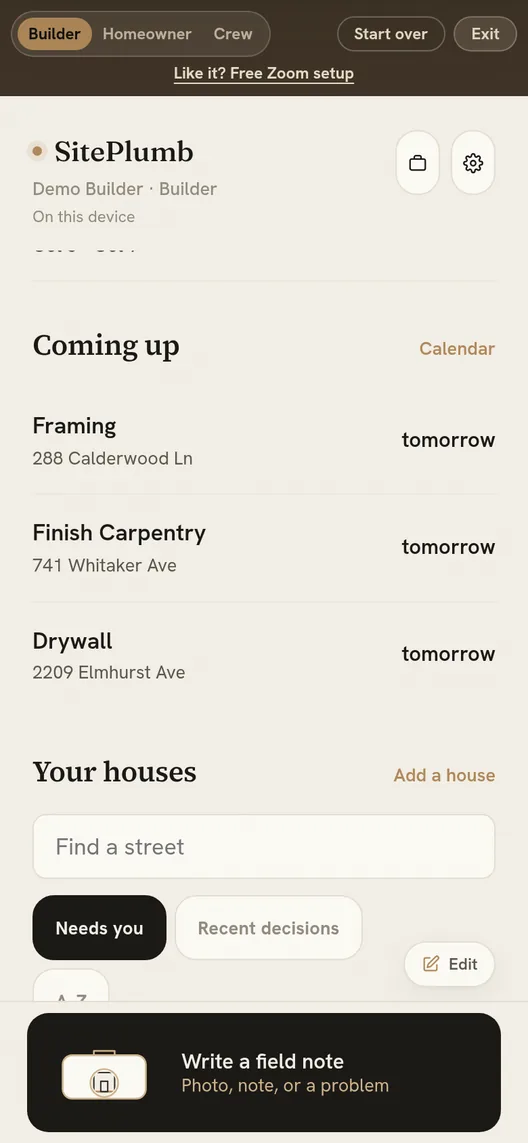
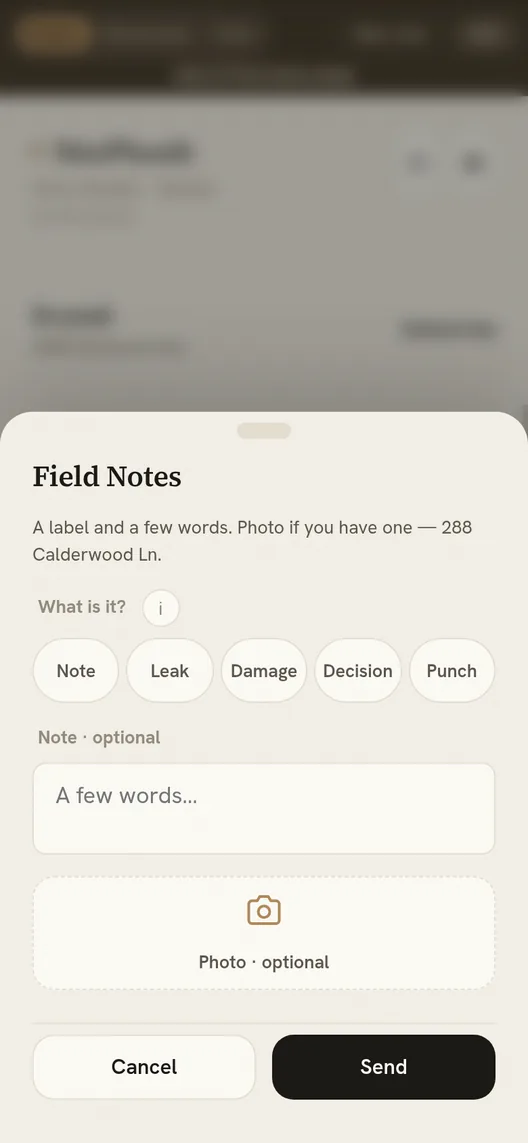
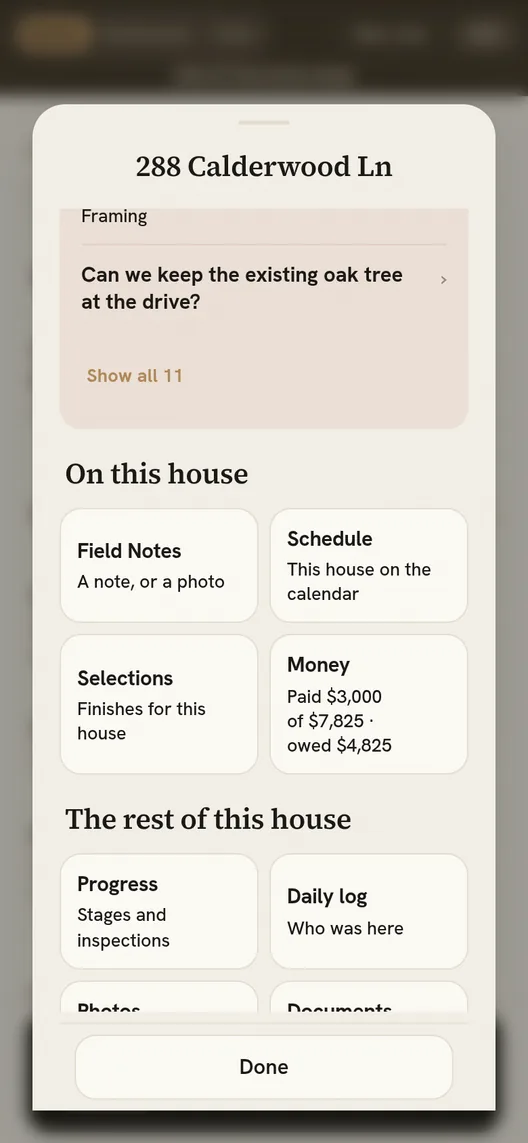
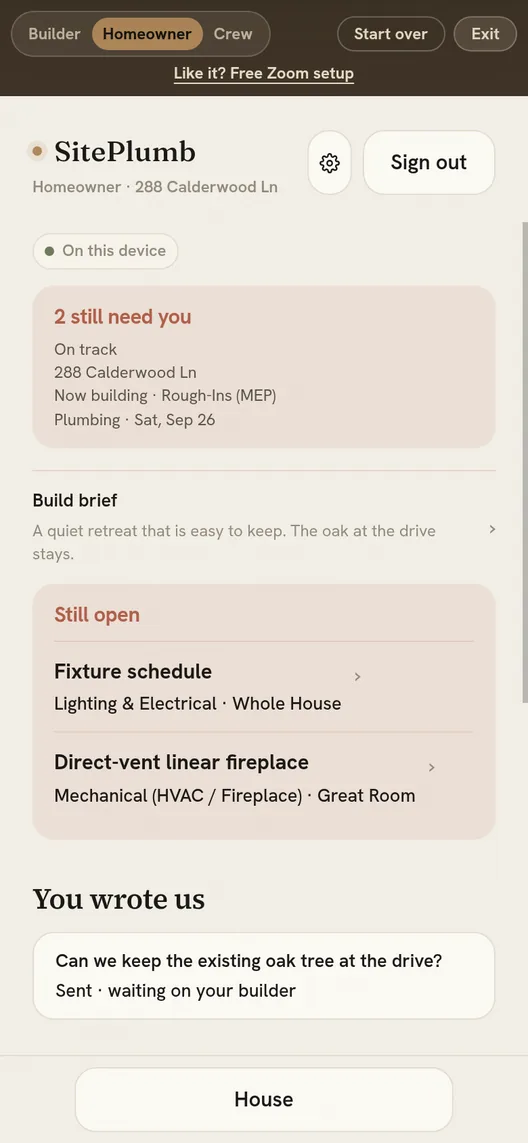
Give homeowners a read-only calendar of their own build. Their site only — never your other jobs. Crews show by trade, not by name ("Flooring crew on site Tue–Thu"), and your notes to subs stay private. Homeowners who can see the week ahead call and text far less.
Subcontractors
Your company roster. Every new site starts with these subs — add the crews you use again and again.
Give a sub live access
Invite codes are per-site — pick the site, then the sub, and we’ll generate their code.
Idle & Plan Ahead
Open Items
Sites needing attention, most open items first.
Idle Worksites
Started but quiet — no scheduled subs, no recent log activity, no permits in motion. Longest-idle first.
Edit sites
Day
Daily log / photos
Schedule a subcontractor
Site
Plumb
Subcontractor
Plumb
Homeowner
Raise a concern
Send a photo and note to your builder. It lands on their items list so it doesn’t get lost.
Add a photo (optional)
Plumb
true to the build
On this device
Delete
Type DELETE to confirm
Confirm
New site
Teardown / rebuild
Adds a Demolition stage first
Add selection
Trade section
Room / location
Selection
Upgrade $ or credit
Put 0 if there's no upgrade or credit on this item.
Status
Note (optional)
Payments
All money received toward the upcharge balance. Add loose payments here; invoice payments are edited on each invoice.
From senders not on this job’s team. File the ones you want; discard the rest.
Welcome to Plumb
Billing
Budget
Budget line
Log a cost
Copy a budget
Start from another site’s lines — amounts stay editable, logged costs never copy.
Plumb
true to the build
1Tap the Sharebutton in the toolbar
1Tap⋯by the address bar, thenShare
2Choose Add to Home Screen
3Open Plumb from your home screen
Can’t find Share? It may be behind the ⋯ button — Safari’s layout moves it.
Open your browser menu and choose Install app
This in-app browser can’t install apps.
Paste it into Safari (or Chrome) to install Plumb.
Schedule — all sites
Settings
Company
Up next
Team
Heads up
Edit entry
Note
Area
Assigned to
Item status
Share with homeowner
Show on their progress view
Permit jurisdiction
Where this site's permits live, so Plumb can deep-link and parse status emails.
City
Permit system
Portal link
Add Plumb to your Home Screen
Opens full-screen like a real app — one tap to launch.
Inspection
Add document
Document type
For trade
Routes this document to that trade's on-site view. Leave on “All trades” for shared paperwork like the contract or permit.
Who can see it
⚠ The homeowner will see this document. Don’t share sub pricing, sub agreements, or internal cost sheets.
Status / note (optional)
File (optional)
Pick a standard name so the file stays organized — or choose “Other” to name it yourself. Attach a PDF, photo, or scan; it’s stored on this device for now.
Add
Choose
Homeowner sign-off
Share with your builder
Type
Add a photo (optional)
Explanation
Upcharge ledger
Mark complete
Plumb won't block you — this is your sign-off that the stage is done. Use the checklist above to confirm inspections, open items and approvals are handled first.
All changes are recorded here. Field changes can't be approved on site — if it's not on this sheet, it doesn't get done.
Progress
New entry
Photo first — everything else is optional.
Take or choose a photo
Note
Area
Assign to · optional
Flag as an open item
Needs a fix or follow-up
Share with homeowner
Off by default — show on their progress view
Report a problem or idea
Add subcontractor
Subcontractor
Site ready
Marks the sub Cleared to start on the board with a timestamp. Until devices are synced, this is a local marker — it doesn't ping their phone yet.
Dev Plumb workbench
Storage
0
records
0
photos (IndexedDB)
0 KB
metadata (localStorage)
—
device usage
Backend sync
Local only — paste a Firebase config to go live.
Tester access
Give a teammate temporary Workbench access for testing. One tap revokes it. Owner only.
Errors on this device
Anything that breaks while you use the app is recorded here. Copy the report and paste it to Claude.
Layout snapshot captures the on-screen size/position of the shell, main, nav and overview cards — taken the moment you opened the Workbench. Use it for layout bugs (stranded nav, cut-off cards).
Live usage
Connect sync, then refresh to see device activity.
Feedback · bugs & ideas
Local state
—
Event log
(empty)
Data
Display
Show sample swatch items
Hide to preview with only your captures
Regression check
App version & updates
Running build—
Cached shell—
Service worker—
Update status—
All devices auto-update on next open after you deploy a new build (the service worker bumps its cache). Use “Force” to update this device immediately. To roll everyone forward, bump CACHE in sw.js when you deploy.